
A password-protected short link asks for a password before it sends anyone to the destination. In Capsulink, Set password sits in the menu of each link, and the dialog says it plainly: “Redirect and statistics will be enabled after entering a password”. The feature comes with paid plans (Starter (free) plan features and limitations). The feature fits links that travel further than you want, and a poor fit for anything that needs real security.
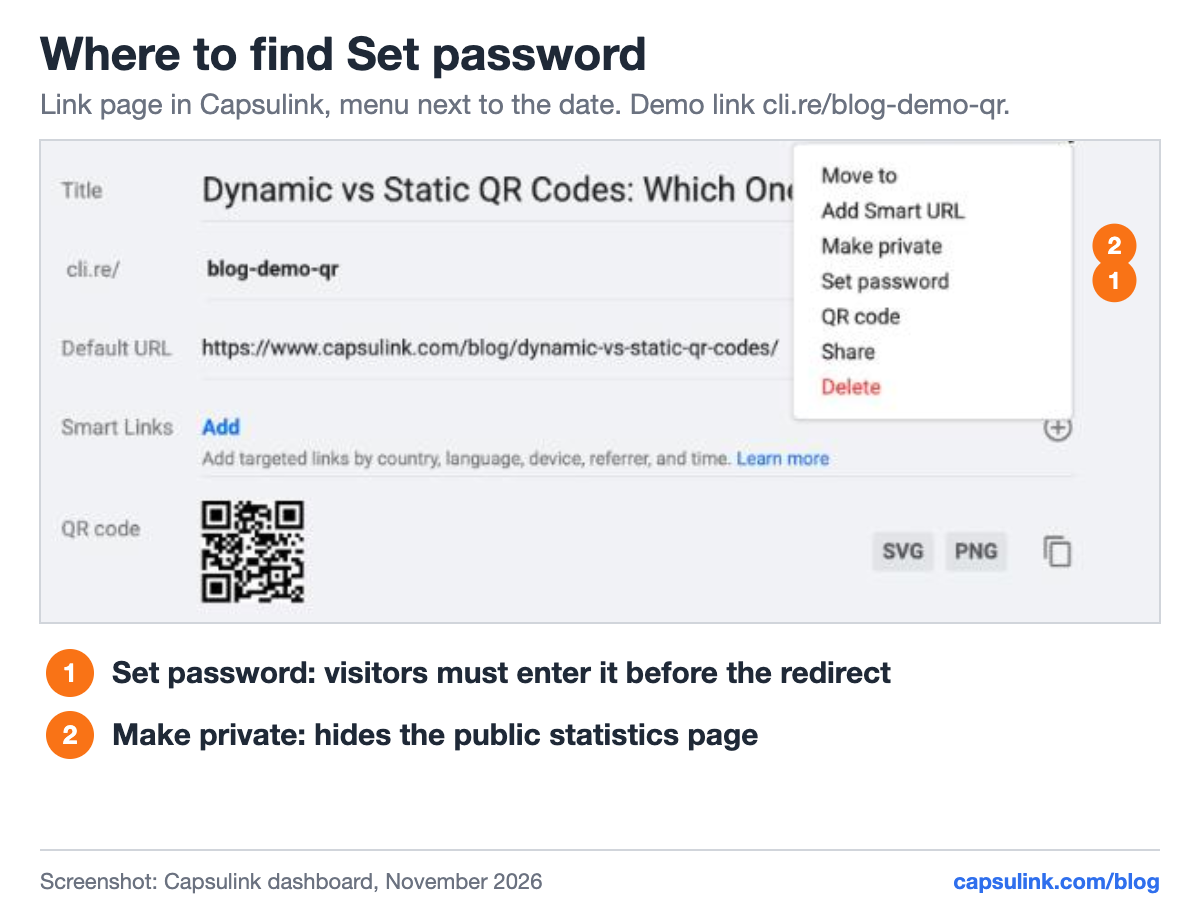
Set password is one of the link actions in Capsulink.
How it works for the visitor
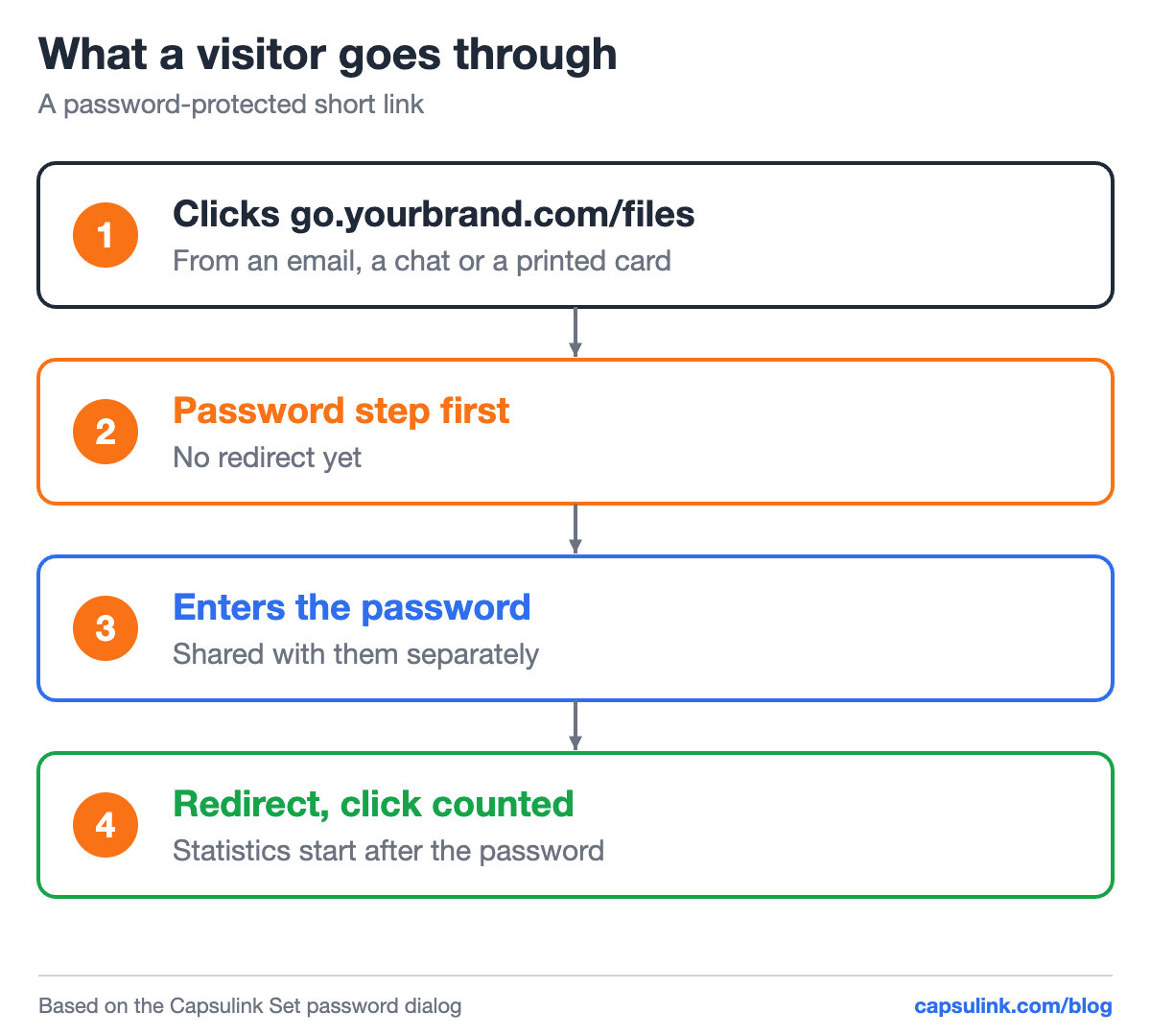
No redirect and no counted click until the right password.
The short link stays the same after you add a password. Anyone who opens it gets the password step first. Only after the correct password does the redirect happen, and only then is the click counted in the link statistics.
How to set a password in Capsulink
- Open the link in your Capsulink dashboard.
- Click the menu next to the date and choose Set password.
- Enter the password and click Save.
- Send the password through a different channel than the link, for example the link by email and the password by phone or chat.
For many links at once, the CSV import has a Password column (How to import links from another URL shortener (CSV)?), and the API can change a link’s password too (How to create and integrate URL shortener API?). See how to shorten links in bulk.
What a password protects, and what it doesn’t
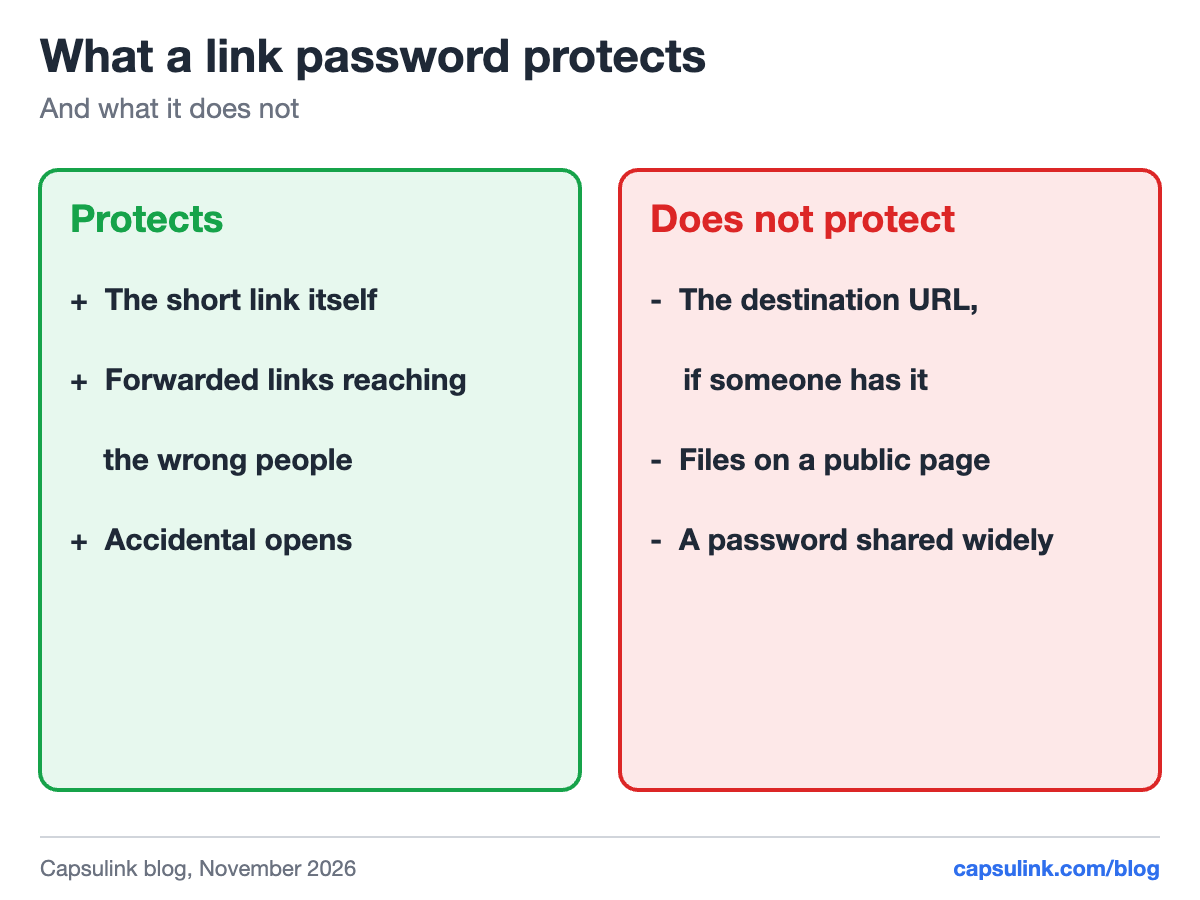
A gate on the short link, not a lock on the destination.
The password guards the short link. It doesn’t change the page behind it. If someone already has the destination URL, they can open it directly without any password. So the destination itself should not be public by accident: a file shared with “anyone with the link” access stays open to anyone who finds that link.
| Use case | Good fit? | Why |
|---|---|---|
| Client preview of a draft site | Yes | Stops casual forwarding |
| Course or webinar materials | Yes | Only people with the password open it |
| Printed QR for staff only | Yes | Guests who scan it can’t go further |
| Contracts, IDs, medical files | No | Need real access control at the source |
| Passwords or API keys | No | Never share them through a link |
Password vs private statistics
The same menu has Make private. Make private is a different setting: it hides the link’s public statistics page, which anyone can otherwise open by adding + to the short link (Private short link analytics). A password controls who reaches the destination. A private link controls who sees the click numbers. Client work often needs both.
Tips
- One password per audience. A different password for each client or course group lets you change one without bothering the others.
- Change it when people leave. Set a new password on the same short link. Printed QR codes keep working.
- Check the page behind it. If the destination is a cloud file, set its sharing to the people who should see it.
- Use a recognizable domain. A password step on go.yourbrand.com looks trustworthy. See the custom short domain setup guide and how to check a link before you click it.
FAQ
Can I put a password on a short link?
Yes. In Capsulink, open the link, choose Set password from its menu and save. Password-protected links come with paid plans.
Are clicks counted before the password is entered?
No. Capsulink enables the redirect and the statistics after the password is entered.
Is a password-protected link secure?
The password keeps the short link from being opened without it. The destination page is not protected by it, so sensitive files need their own access control.
Can I change the password later?
Yes, set a new password on the same link. The short link and any QR code for it stay the same.