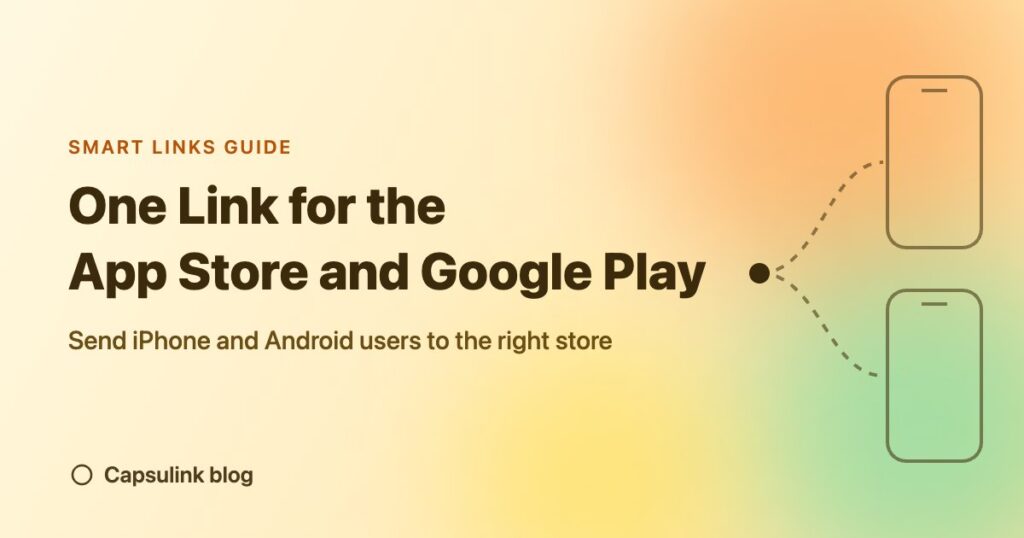

A smart link sends iPhone users to the App Store and Android users to Google Play from one short URL. In Capsulink the setup is one short link with two device rules, and the same link works inside a printed QR code. The demo link cli.re/blog-demo-app used in this guide was built exactly that way.
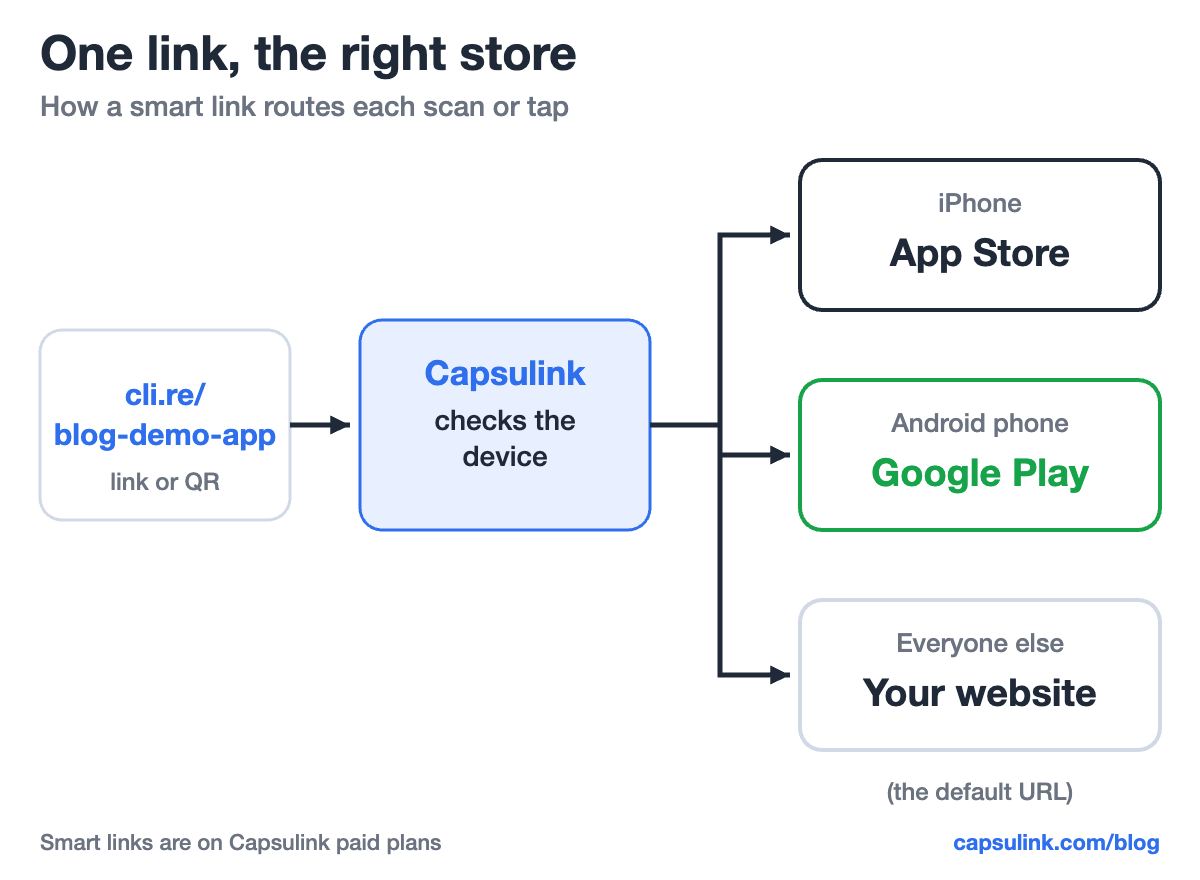
One short link, three destinations: iPhone to the App Store, Android to Google Play, everything else to the website.
Why one link works better than two store badges
Two store badges work on a web page, where people tap the one they need. A poster, a podcast mention or an Instagram bio has room for one link only, and a QR code holds one URL. Without device routing, every Android phone that scans an App Store link lands on the wrong store.
The store links don’t help each other. An App Store link looks like apps.apple.com/app/id followed by a number, a Google Play link like play.google.com/store/apps/details?id= followed by the app’s package name. Opened on an Android phone, the App Store link shows a web page with no install button for that phone.
How a smart link picks the right store
Every click on a smart link goes through Capsulink before the redirect. Capsulink reads the visitor’s device from the browser request, checks the link’s rules and sends the visitor to the matching destination. Visitors who match no rule go to the link’s default URL (What are Smart links and how do they work?).
Rules can use country, language, device and time of day. App links need only the device rule, but the other three are handy later, for example to send German speakers to a German landing page.
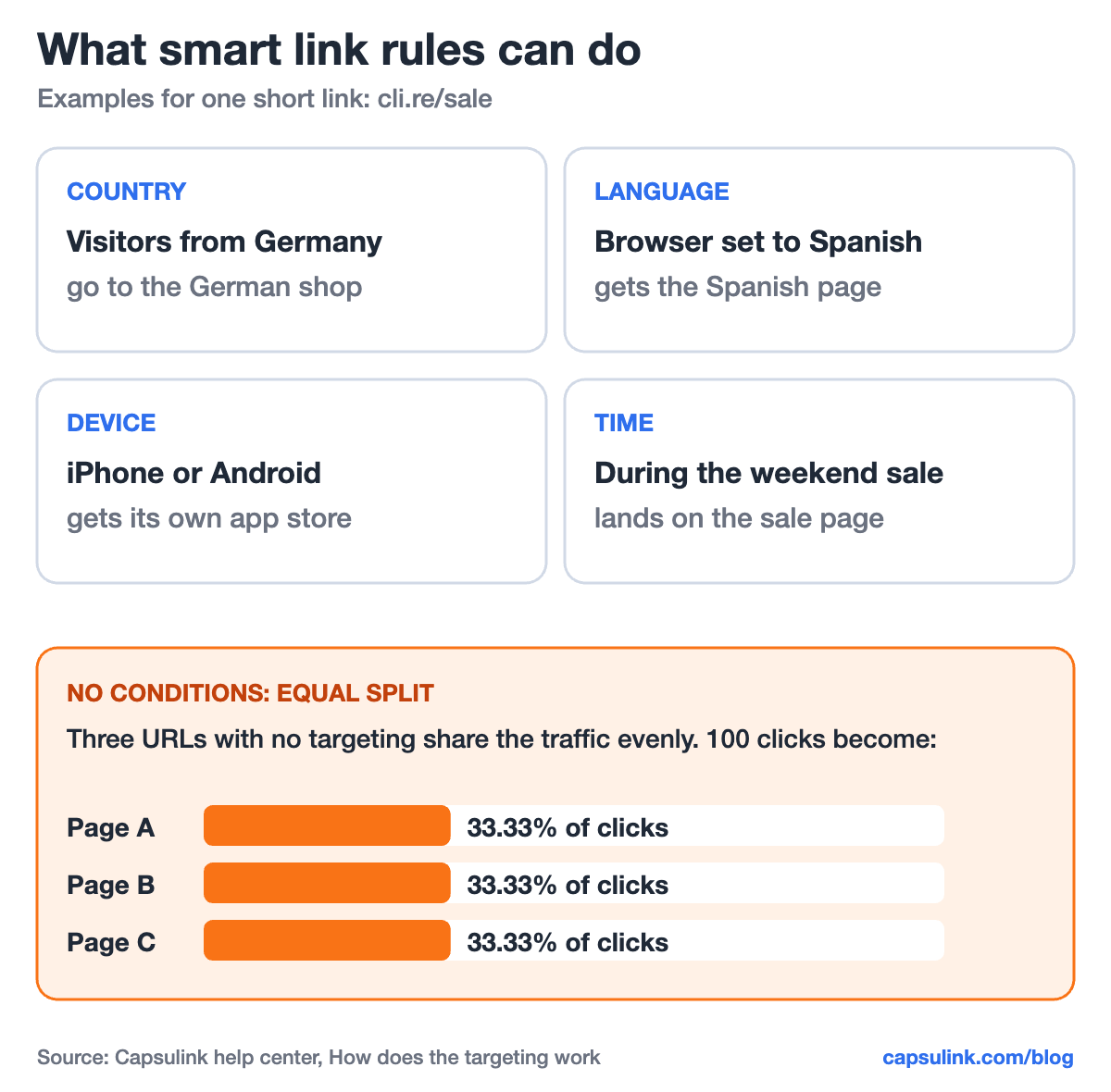
The four rule types of a Capsulink smart link. A link with destinations and no conditions splits traffic equally.
Which devices Capsulink can tell apart
The device rule has three groups (Which devices does the Smart link feature support?):
| Device group | Options in Capsulink |
|---|---|
| Desktop | Windows, Mac, Linux |
| Phone | Android, iPhone, Windows, BlackBerry |
| Tablet | Android, iPad, Windows, BlackBerry, Kindle |
The iPad sits under Tablet, apart from the iPhone. A link with phone rules only sends iPad users to the default URL. If the app has a tablet version, add a Tablet iPad rule to the App Store and a Tablet Android rule to Google Play.
Set up the link in Capsulink, step by step
The help center article Create one link and QR code for both App Store and Google Play lists four steps:
- Create a short link to the app’s website or landing page. The link sends computers and every device without a rule there.
- Open the link’s settings and add a Smart link rule for iPhone with your App Store link as the destination.
- Add a second rule for Android with your Google Play link.
- Save, then test the link on an iPhone and on an Android phone.
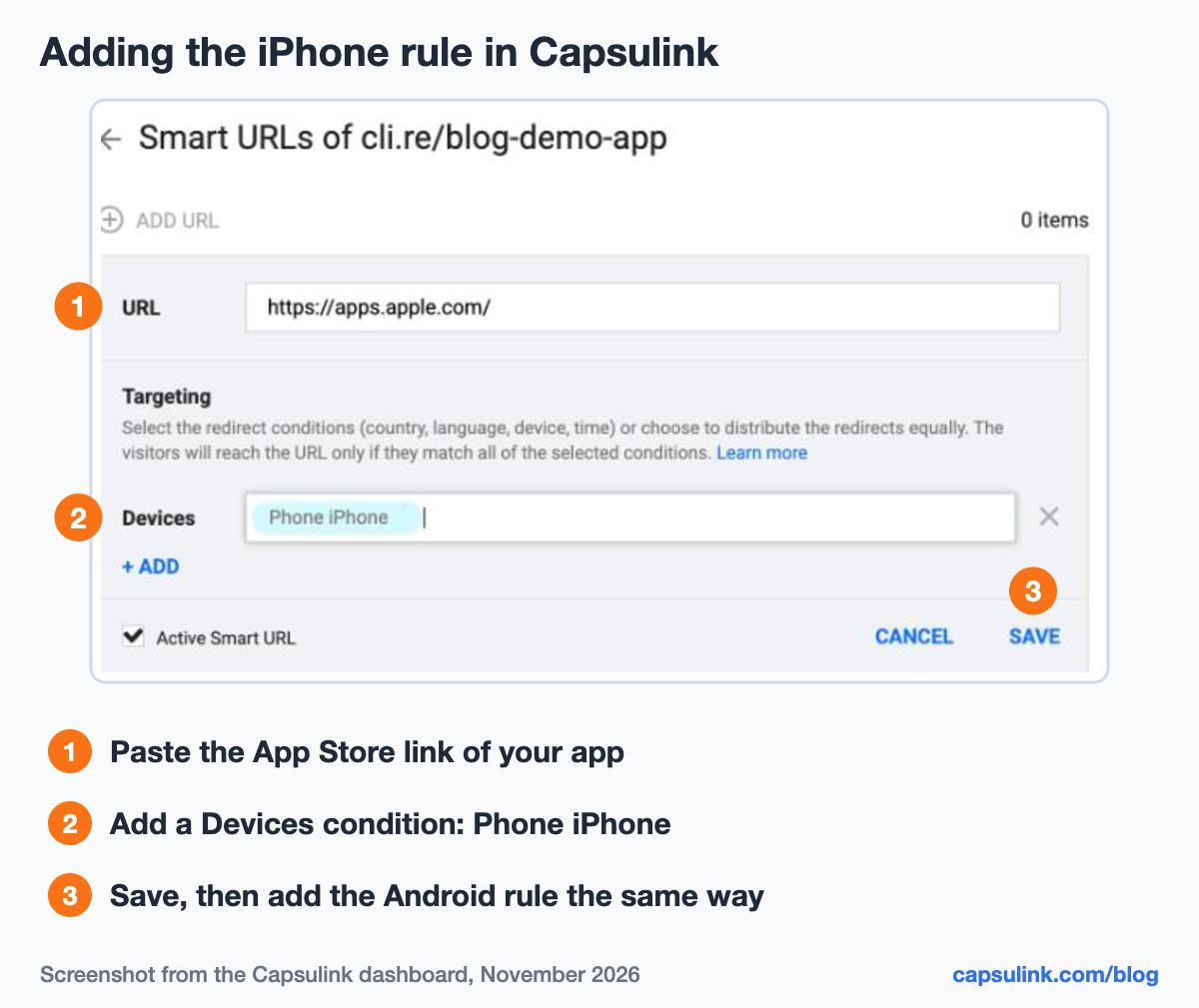
Adding the iPhone rule to the demo link cli.re/blog-demo-app in Capsulink.
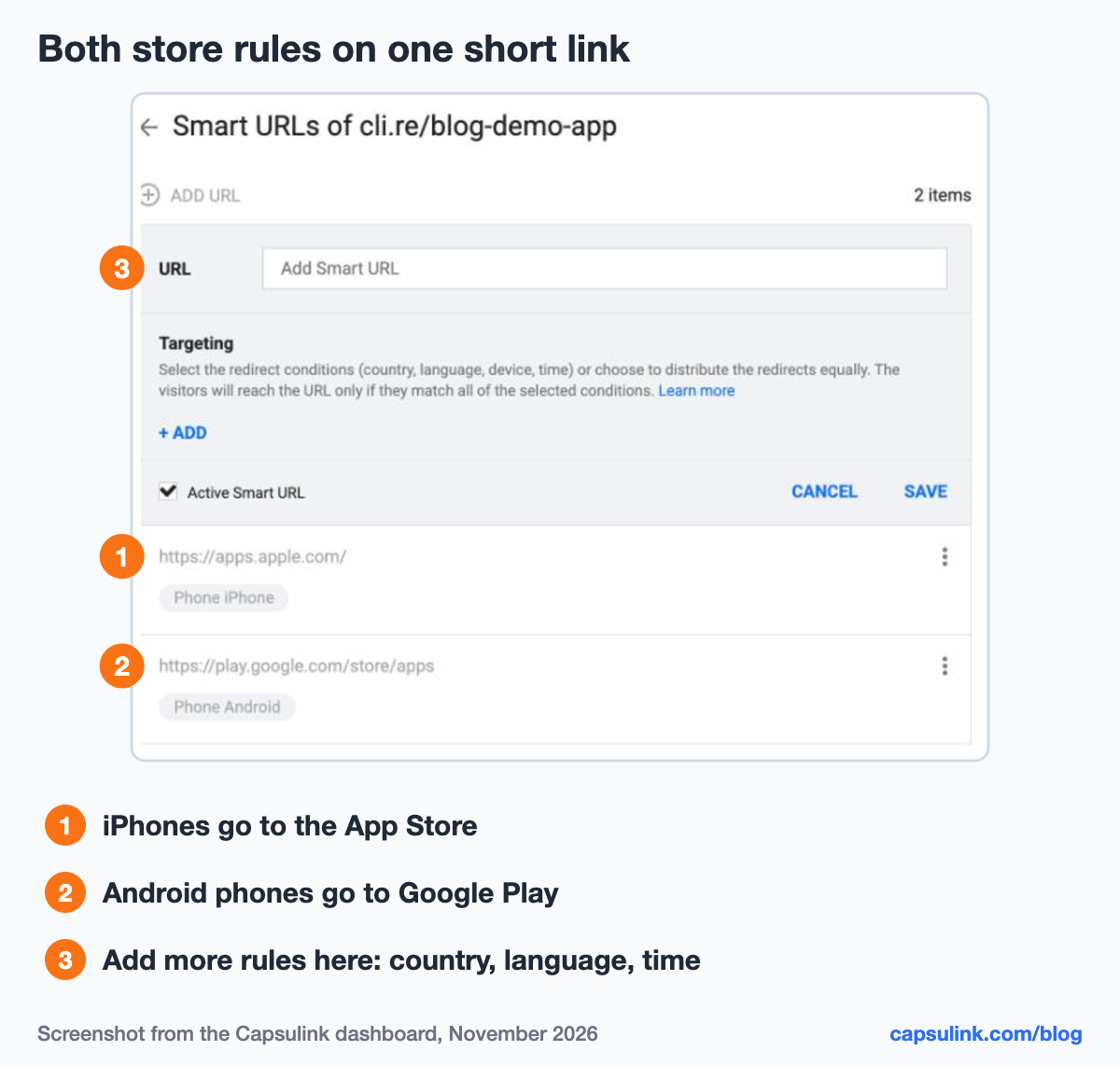
Both store rules saved. Computers and other devices still go to the default URL.
Smart links come with paid plans, and the help center says Pro covers this setup. Pro costs $10 a month or $100 a year (Capsulink pricing). Rule limits per plan are listed in What are the limitations of Smart links?.
Here is where each visitor of the demo link ends up:
| Visitor | Matching rule | Destination |
|---|---|---|
| iPhone | Phone, iPhone | App Store |
| Android phone | Phone, Android | Google Play |
| iPad | None (add Tablet, iPad) | Default URL |
| Mac or Windows PC | None | Default URL |
One QR code for both stores
A QR code made from the smart link routes scans the same way, because the phone camera opens the short URL and Capsulink does the rest. The help article suggests it for flyers, packaging and posters.
The short URL also keeps the code simple. In a test for the dynamic vs static QR codes guide, a 27-character short link made a version 3 code (29×29 modules), while a 147-character URL needed version 8 (49×49). Fewer modules mean bigger squares at the same print size, which are easier to scan from a distance.
Store links change sometimes, for example when an app is republished under a new listing. Edit the rule’s destination in Capsulink and the printed code follows, no reprint needed (how to edit a QR code after printing). Scans count in the link’s statistics, see how to track QR code scans.
Test the link before it goes to print
- iPhone: scan the code with the Camera app and tap the link. The App Store page should open.
- Android phone: scan with the camera or Google Lens. Google Play should open.
- Laptop: open the short link in a browser. The default page should load.
- iPad: test only if you added a tablet rule.
Test by opening the link itself. A preview card in a chat app is fetched by the app’s servers, so the card can show the default page even when the link routes correctly on the phone.
Tips for app download links
- Make the default page useful. Desktop visitors land there, so show both store badges and a QR code they can scan with their phone.
- Use a readable slug. People type printed links by hand. A slug like /app is easier to type than random characters.
- Use it in a TikTok bio. The same smart link works as a bio link, see how to add a link to your TikTok bio.
- Put the link on your own domain. go.yourbrand.com/app tells people who sent the link. Setup takes one DNS record, see the custom short domain setup guide.
- Tag the website traffic. Add UTM parameters to the default URL to see desktop visits in Google Analytics, see the UTM parameters guide.
FAQ
Can one QR code open both the App Store and Google Play?
Yes. Make the QR code from a smart link with an iPhone rule to the App Store and an Android rule to Google Play. The camera opens the link and each phone goes to its own store.
Where do desktop users go?
To the link’s default URL, usually the app’s website. Add Desktop rules only if Mac or Windows users need a different page, for example the Mac App Store.
Does the link work on an iPad?
Only with a Tablet iPad rule. Without one, iPad users go to the default URL.
Do I need a new QR code if my app link changes?
No. Change the destination of the rule in Capsulink. The QR code keeps pointing to the same short link.
Is a smart link free in Capsulink?
Smart links are part of the paid plans, starting with Pro at $10 a month. The free Starter plan has regular short links and QR codes.