
Gmail allows up to 10,000 characters in an email signature, images included (Gmail Help, Create a Gmail signature). That is plenty of room for links, and every email you send carries them. Put each signature link on a short link and you can count clicks per line and change where a link goes, even in emails you sent months ago.
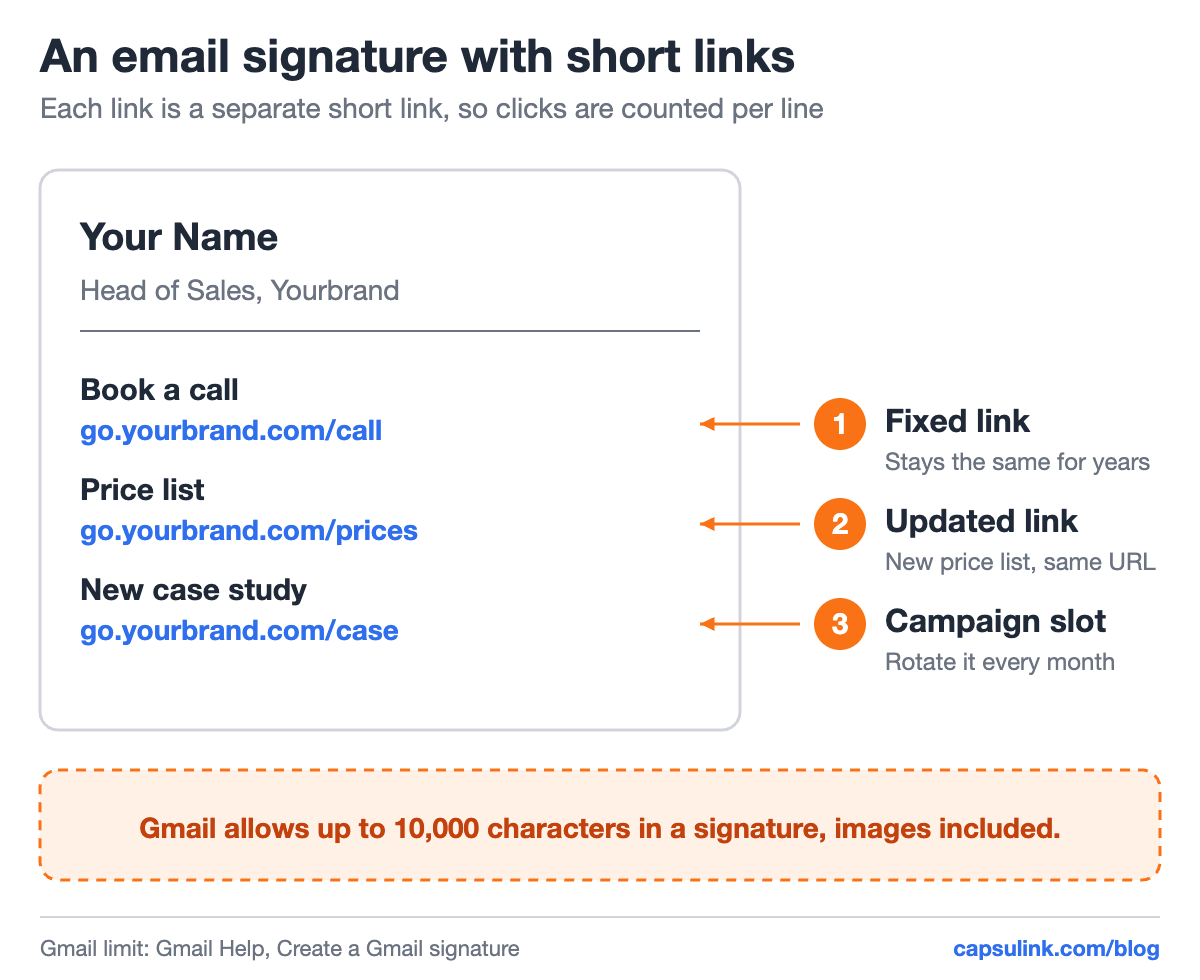
A signature with three short links on a branded domain, each with its own job.
How to add a signature in Gmail
The steps from Gmail Help, on a computer:
- Open Gmail.
- At the top right, click Settings, then See all settings.
- In the “Signature” section, add your signature text in the box.
- At the bottom of the page, click Save Changes.
To turn text into a link, select it and click the link icon in the formatting bar above the box.
Gmail keeps more than one signature. You can set one default for new emails and another for replies, and pick a different one while writing. If you send from several addresses with “Send mail as”, each address can have its own signature.
An image in the signature counts toward the 10,000 characters. If Gmail shows an error, Gmail Help suggests resizing the image.
Which links belong in a signature
Two or three links are enough. Each one should have a clear job:
| Link | Example | How often it changes |
|---|---|---|
| Booking or contact | go.yourbrand.com/call | Rarely |
| Current offer or price list | go.yourbrand.com/prices | When the page moves |
| Campaign slot | go.yourbrand.com/case | Every month |
Gmail’s sender guidelines say links in a message should be “visible and easy to understand” and that recipients should know what to expect when they click (Email sender guidelines). A readable link on your own domain does that. A link text that says “Book a call” over go.yourbrand.com/call does it even better.
Change the link in emails you already sent
A sent email can’t be edited, but the page behind its short link can change. Point go.yourbrand.com/case to a new case study, and every email that carries it, from March or from today, opens the new page.
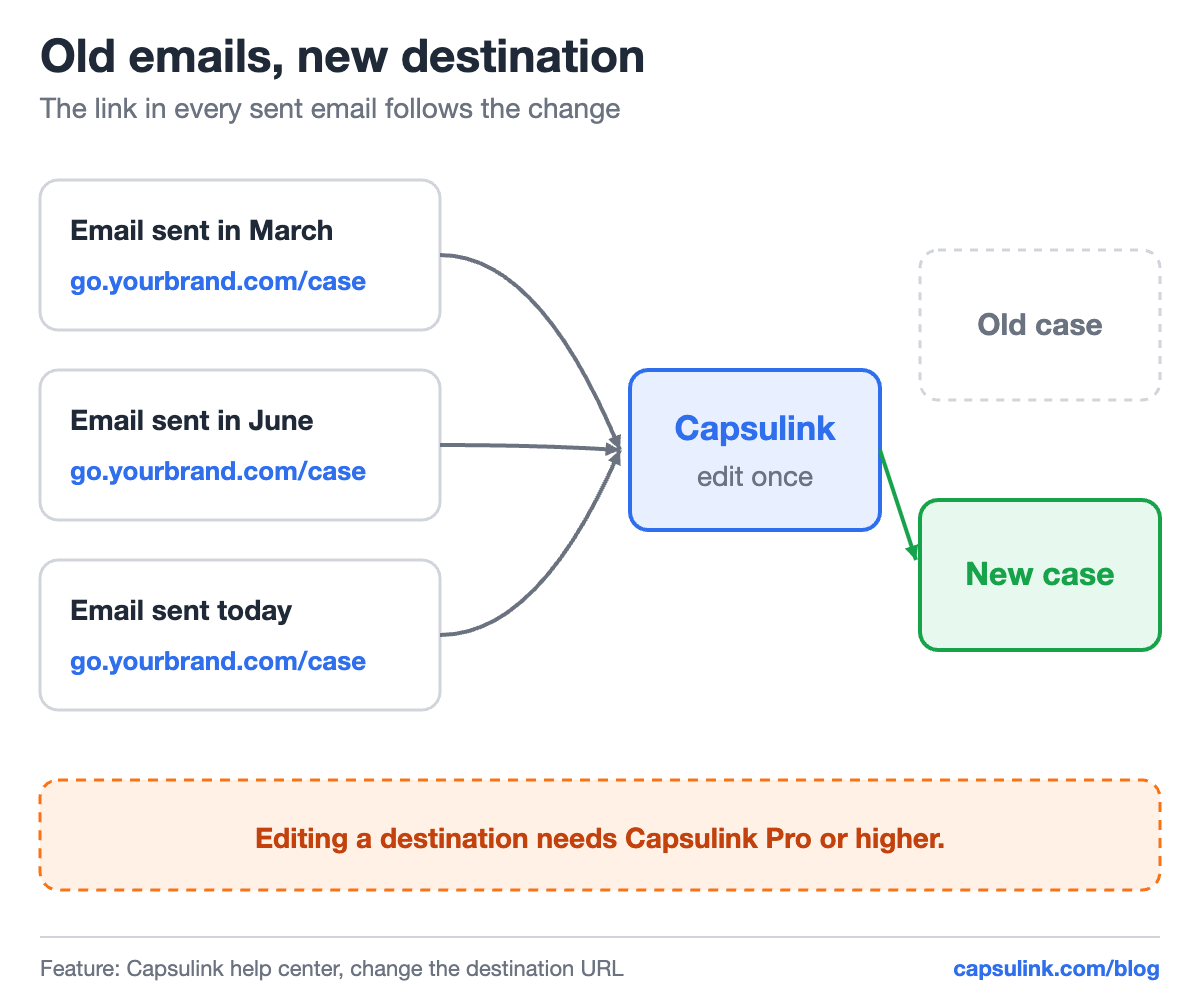
One edit in Capsulink updates the link in every email already sent.
In Capsulink, changing a destination comes with Pro and higher plans (How do I change the destination URL (Target URL) for a short link?). The same trick fixes a broken page: if an old link in your signature points to a page that no longer exists, redirect it instead of hoping nobody clicks. Capsulink also sends broken link notifications when a destination stops working, on every plan including the free Starter plan (Starter (free) plan features and limitations).
Track signature clicks
Every short link has its own statistics: clicks over time, countries, devices and referrers (How to view and export your link statistics). With one link per signature line, you see which line gets used. For a team, give each person their own campaign link, so the numbers show whose emails bring clicks.
For Google Analytics, add UTM tags to the destination URL, for example utm_source=signature and utm_medium=email. The signature keeps the short link, and the tags arrive with every click. See the UTM parameters guide for naming, and how to track link clicks for why click and visit counts differ.
Why the domain in the link matters
Links on a shared public short domain carry the history of everyone who uses that domain. Some spam filters and company security tools treat such links with suspicion, see why short links get blocked. A short domain that only your company uses avoids that and repeats your brand in every email.
In Capsulink a custom domain comes with Pro and higher plans, and setup is one DNS record. A subdomain like go.yourbrand.com keeps your website and email working as before, see the custom short domain setup guide.
Signature link checklist
- Two or three links. A signature with ten links looks like an ad.
- Readable link text. “Book a call” tells people what happens. A bare URL works too, as long as it is short and branded.
- Test after saving. Send yourself an email and click every link in the signature.
- One link per person for teams. Clicks per person show up in the statistics.
- Check images. They count toward Gmail’s 10,000-character limit.
FAQ
How do I add a link to my Gmail signature?
Open Settings, then See all settings, and find the “Signature” section. Select the text, click the link button, paste the URL and click Save Changes at the bottom of the page.
How long can a Gmail signature be?
Up to 10,000 characters. Images in the signature count toward that limit.
Can I track clicks on my email signature links?
Yes. Use a separate short link for each signature link. Each one counts its own clicks, and UTM tags on the destination pass the source to Google Analytics.
Can I change a link in emails I already sent?
Not the email itself, but if the link is a short link you can change where it goes. Every sent email then opens the new page.